NX502 and the Sysmac controllers (NX7/NX102/NJ5/NJ1) with product code XX20 have functions for communicating with databases. You can find some videos on YouTube showing how to set this up.
Here are some screenshots based on the videos aboveYou can find everything collected in a Tips! document here. Run SQL Server Configuration Manager. 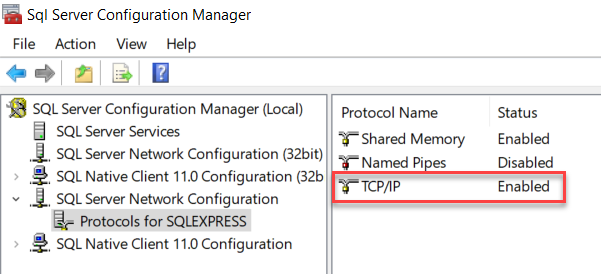 Enable this and restart the server services. You may need to open a couple of ports in the PC's firewall. 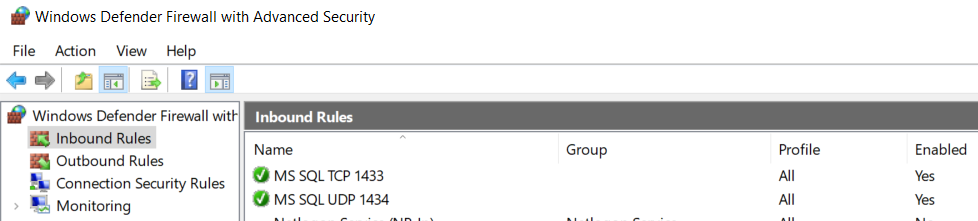 |
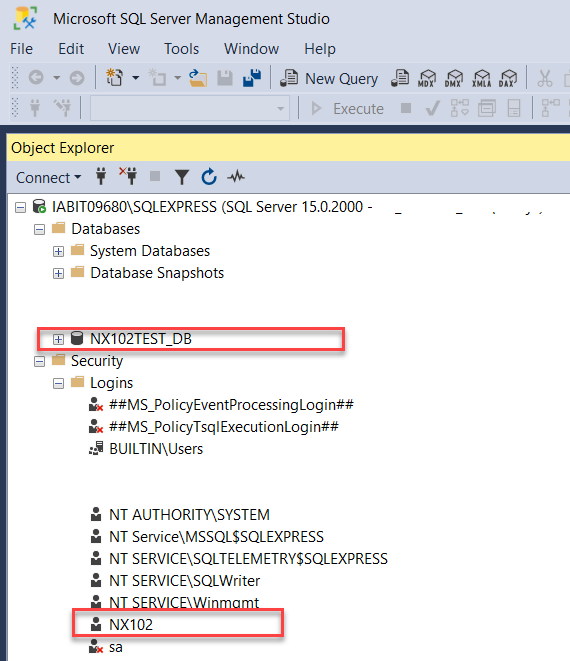 Create a database, a table and a user. 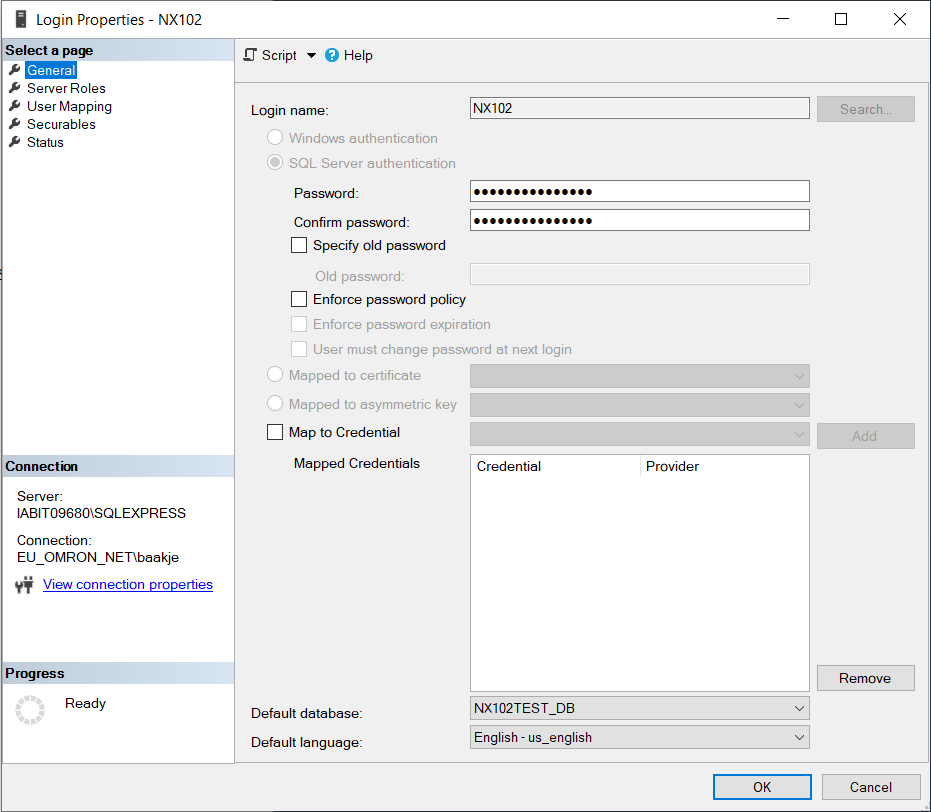 Enter the user's password. 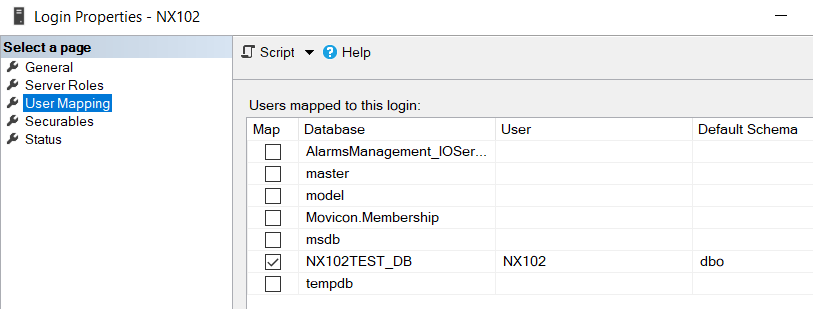 Link the user to the database. 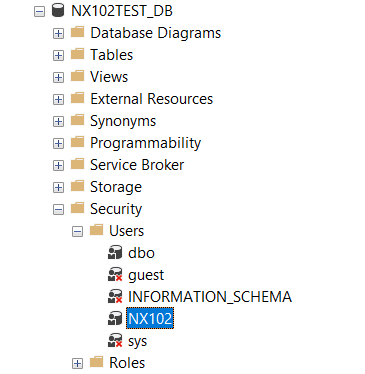 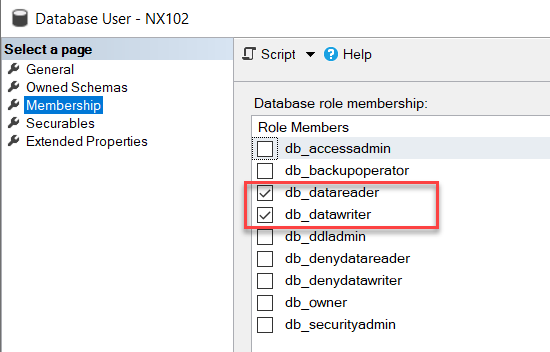 Give the user read and write access. 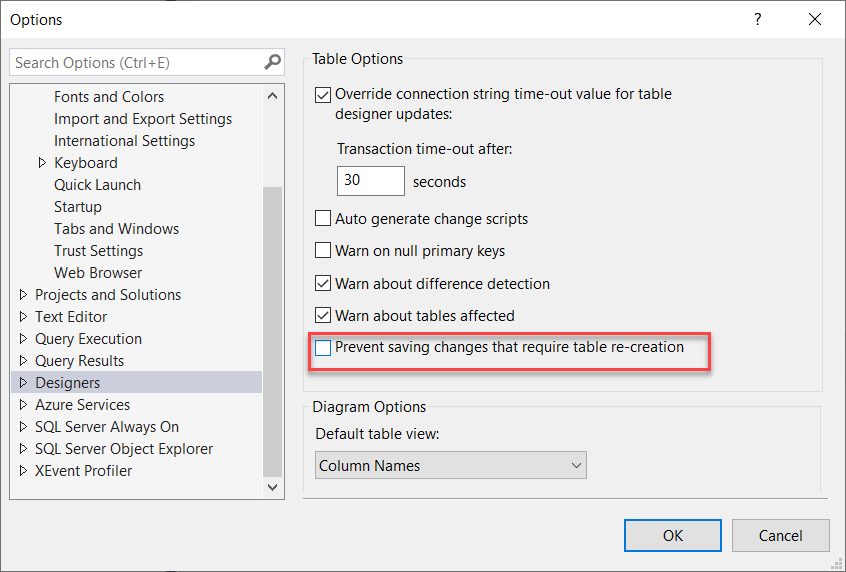 Remove this so you can edit the table later. |
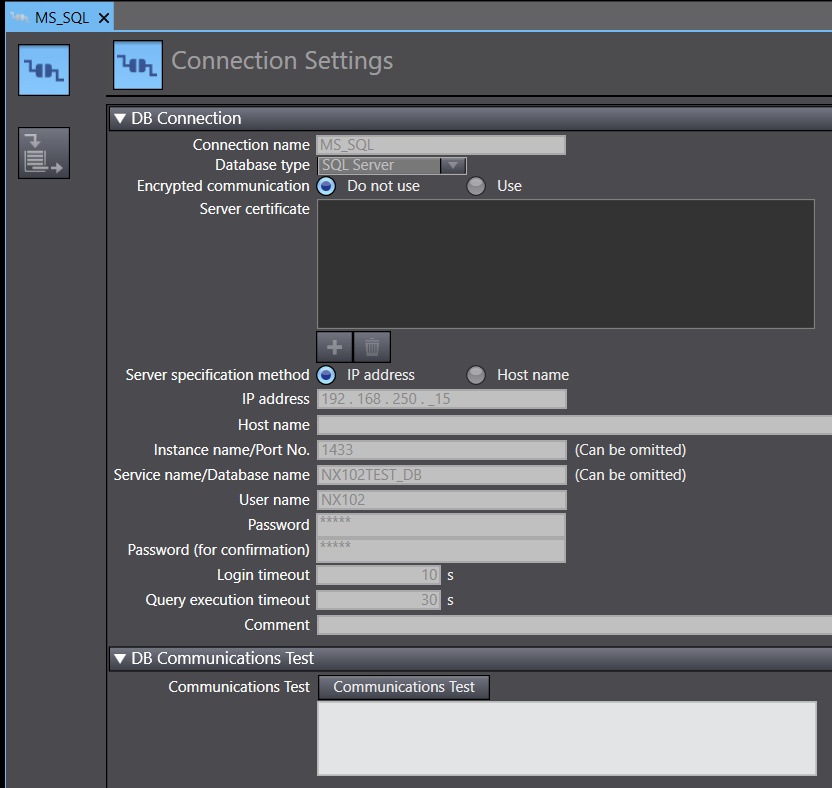 Click Communication Test. Data types and tablesCreate a data type in the CPU based on the columns in the database table, or the other way round. To avoid doing the work twice and to make sure you use "compatible" data types, you can use the "DB Connection Service Support Tool". https://www.youtube.com/watch?v=JIOOzHqLUUc Error codes on the function blocksErrorID 300B = mismatch between the data types in the DB table and Sysmac Studio. "Valid" data types in MS SQL Server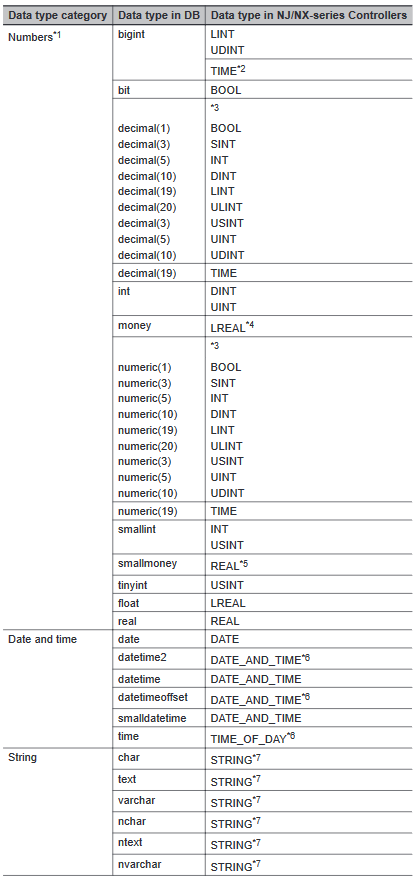 W527 ch. 3-2-2 |
Was this article helpful?
That’s Great!
Thank you for your feedback
Sorry! We couldn't be helpful
Thank you for your feedback
Feedback sent
We appreciate your effort and will try to fix the article