- Copy the contents of the firmware file to the root directory of a MicroSD card.
- Power OFF the FHV7.
- Insert MicroSD card.
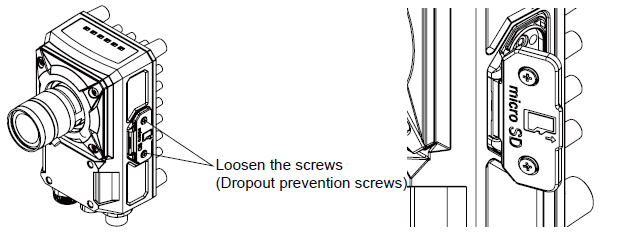
- Power ON the FHV7. The blinking BUSY indicator indicates the update is in progress.
- Once the upgrade is complete, the RUN LED will blink repeatedly. If anything abnormal occurs, the ERR LED will light up.
- Power off the FHV7.
- Remove the MicroSD card.
- Power on the FHV7 and the device should now have the new firmware.
Was this article helpful?
That’s Great!
Thank you for your feedback
Sorry! We couldn't be helpful
Thank you for your feedback
Feedback sent
We appreciate your effort and will try to fix the article