Copy the contents of the firmware file to the root directory of a MicroSD card/USB storage.
Firmware files
Contact your OMRON representative to acquire the firmware files
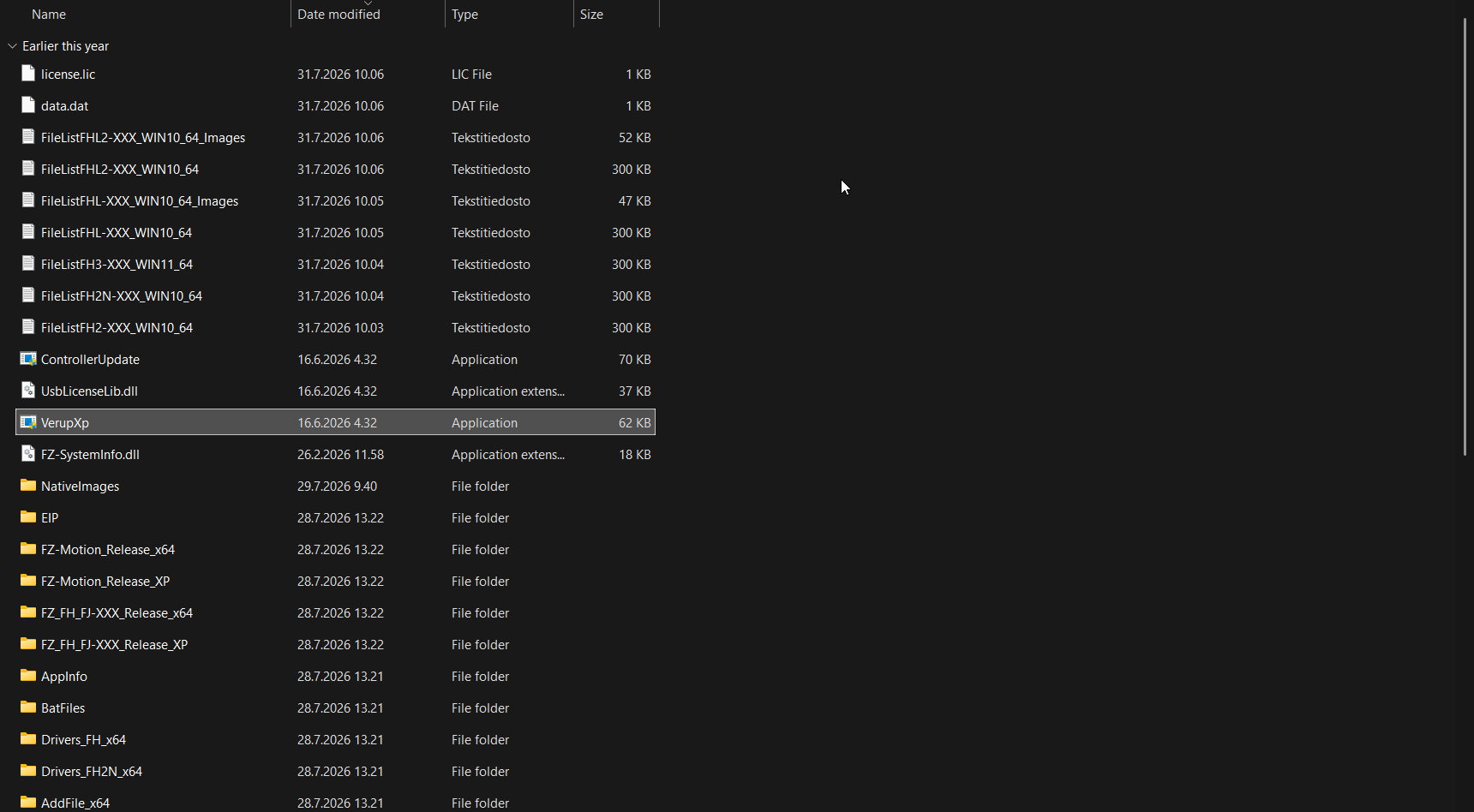
2. Insert the storage device to the FH controller.
3. In the Main Window, select System information from the Function menu. The System information dialog box is displayed.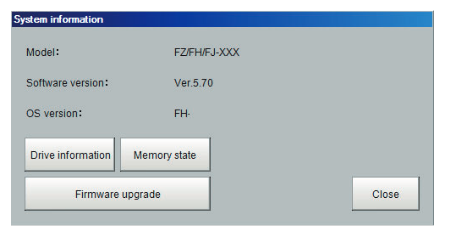
4. Select Firmware Upgrade.
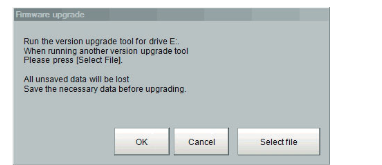
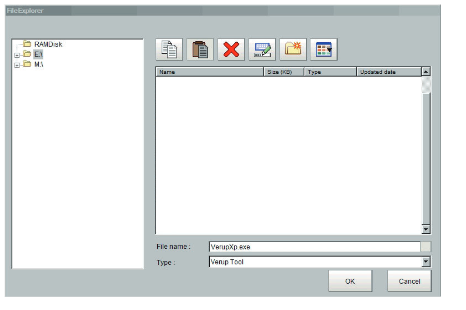
5. Determine a version-up tool to launch. To use the upgrade in the E drive select OK. Otherwise you may manually navigate to the desired directory by selecting Select file.
 Select Verup.exe in the FileExplorer
6. Update the version.
On the start window, check the Software version of the Controller and Software version after updated and then click Execute if it is OK.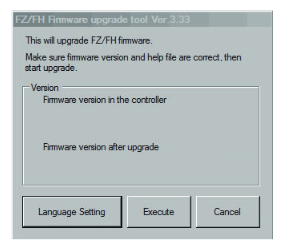
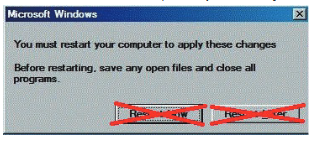
7. Install the camera driver.
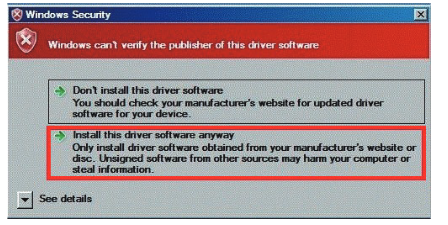
Drivers may be installed depending on the conditions of the Sensor Controller. If the following Windows Security dialog appears, click the Install this driver software anyway on the bottom.
When you click the upper Don’t install this driver software, the process proceeds without installing drivers. If you mistakenly click the upper button, the same dialogue will appear again.
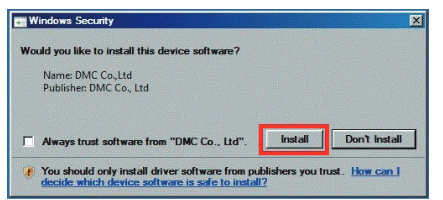
 8. Install the touch panel monitor.In updating the version that supports touch panel monitors, the following dialog may appear. In this case, click Install.
When you click the Don't Install, the process proceeds without installing drivers. If you mistakenly click it, turn off the Sensor Controller to install the driver again.
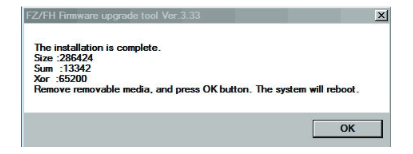
 9. After the following message dialogue is displayed, remove the USB memory stick or SD card and then click OK.
Was this article helpful?
That’s Great!
Thank you for your feedback
Sorry! We couldn't be helpful
Thank you for your feedback
Feedback sent
We appreciate your effort and will try to fix the article