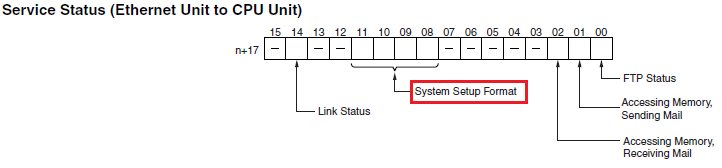
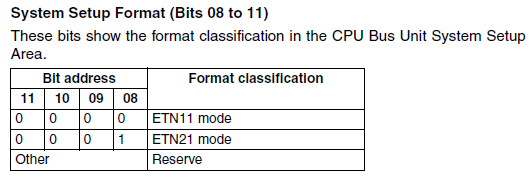
Reference manual W420-E1-06 Ethernet Units Construction of Networks Operation Manual, Section 2-11, PDF pg. 79.
Monitor CIO 1517 + (25 x unit number), reference to PDF pg107 -108
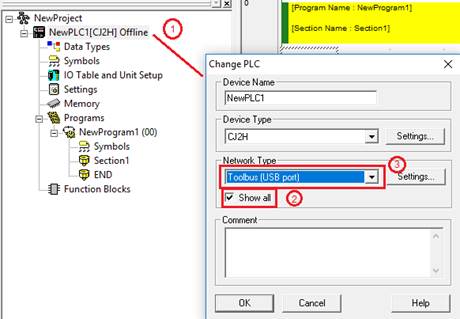
What you need to do is go offline.
- Double left click on the PLC name (in this example the PLC name = NewPLC1)
- In the Network Type check the show all
- In the Network Type select Toolbus (USB port)
- Now go online to the PLC.
- Change PLC to Program mode.
- Open the IO table, upload the IO table (so you have all the settings) , and select the CJ1W-ETN21(ETN11Mode)
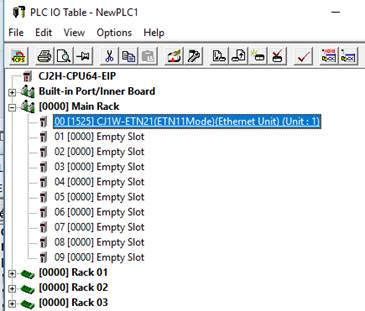
- Select Options -> Change ETN21 Mode
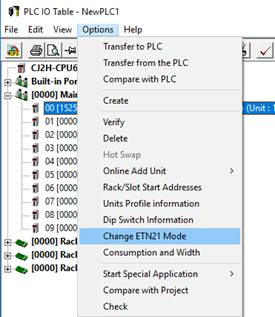
- Select Yes to make the change
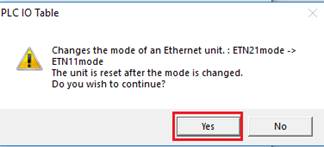
- You’ll see this message and select Yes
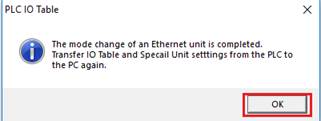
- Upload the IO table to the PLC
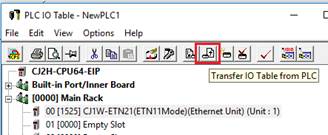
- You IO table will be updated
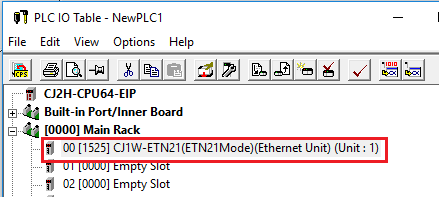
- You should double check the setting of the units in the IO table to make sure they are correct.
Error and Solution
Error: Insufficient frame length when changing the ETN21 (ETN11 Mode) back to ETN21 Mode)
Insufficient frame length. Set the frame length of the network settings to 1004 or greater, or select another network type.
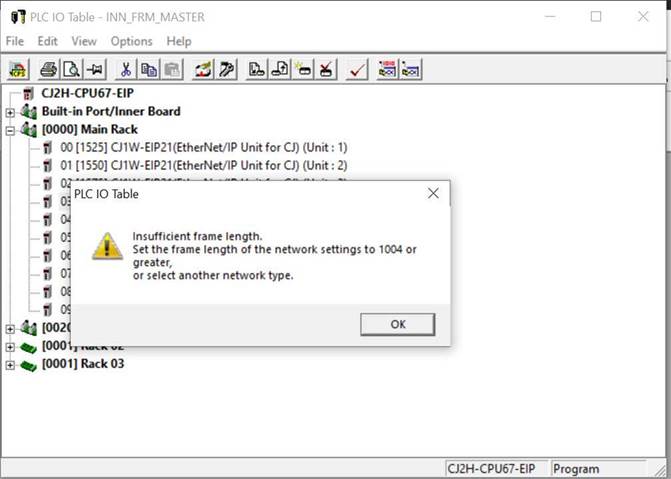
Cause:
This is cause by the network type selected for connection between the computer and the PLC.
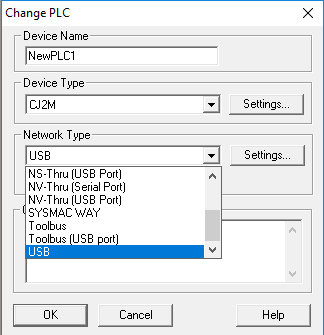
Solution:
If the Network type is USB, change to Toolbus (USB port).
Was this article helpful?
That’s Great!
Thank you for your feedback
Sorry! We couldn't be helpful
Thank you for your feedback
Feedback sent
We appreciate your effort and will try to fix the article