The USB driver should install automatically along with the NB-Designer software installation. However, if this for some reason does not work you can follow this guide to install it manually.
Instructions to install the USB driver for NB
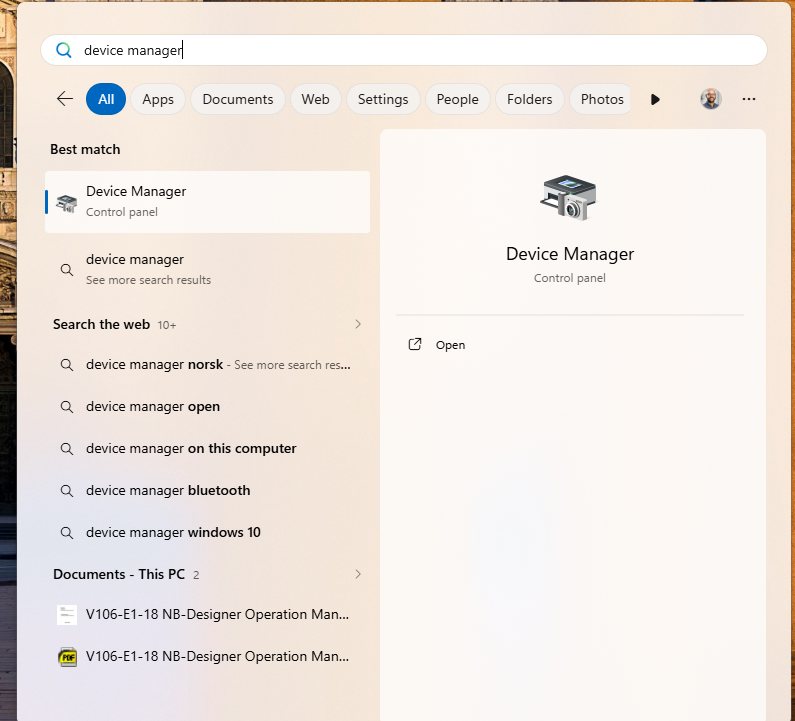
Step 1: Open Device Manager while the NB panel is connected to your computer with a USB cable.
- Click Start and search for Device manager
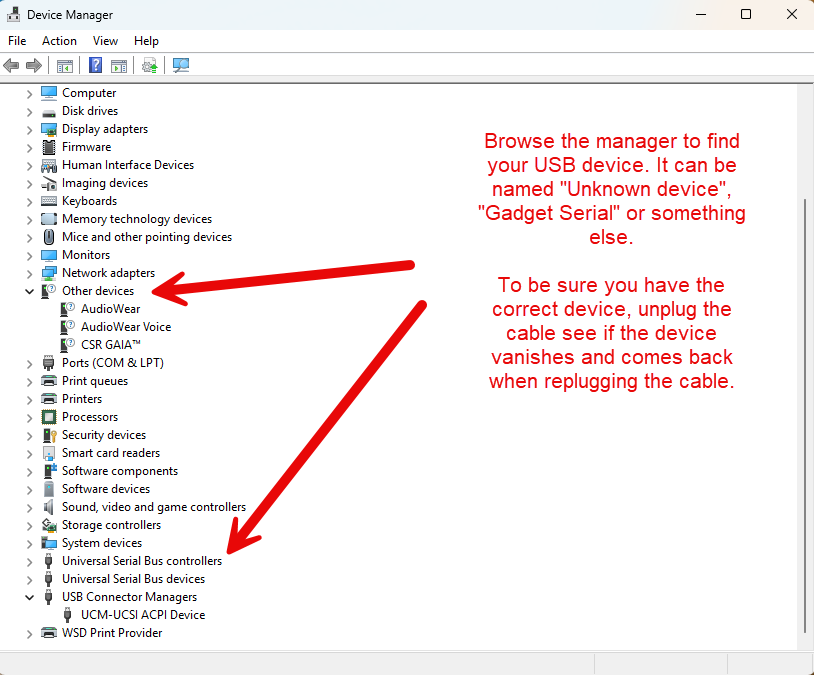
Step 2: Find the HMI as a USB device in your list
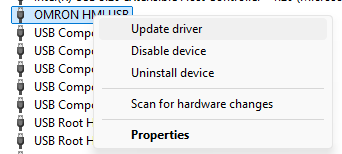
Step 3: Once you have found your device, right click and select update driver
Step 4: In the popup window select "Browse my computer for driver software"
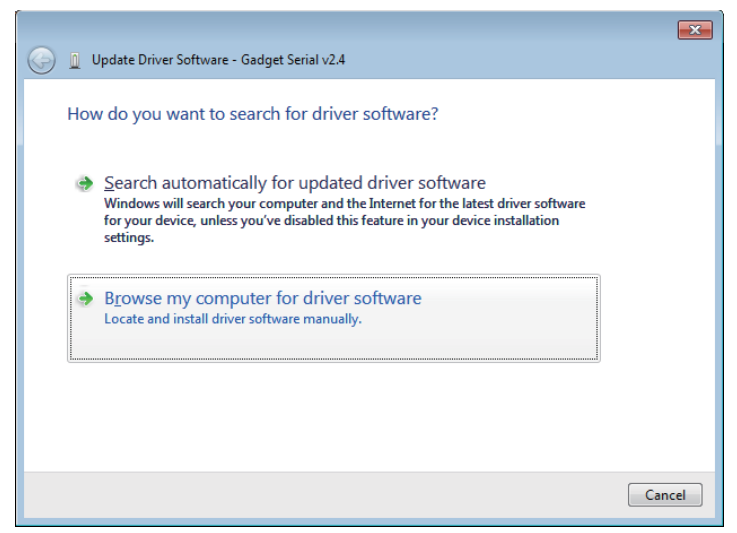
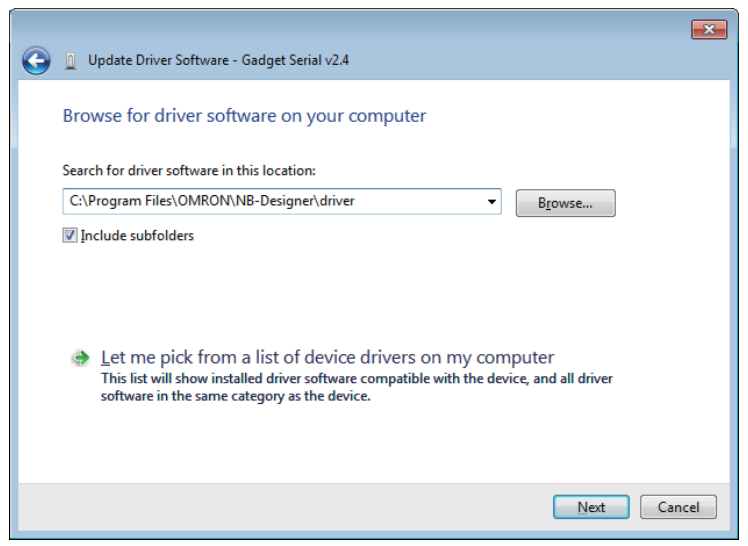
Step 5: The following dialog box is displayed.
Select [Include subfolders] and click the [Browse] button to specify the folder.
- Specify the driver folder under NB-Designer installation directly and click [Next] button.
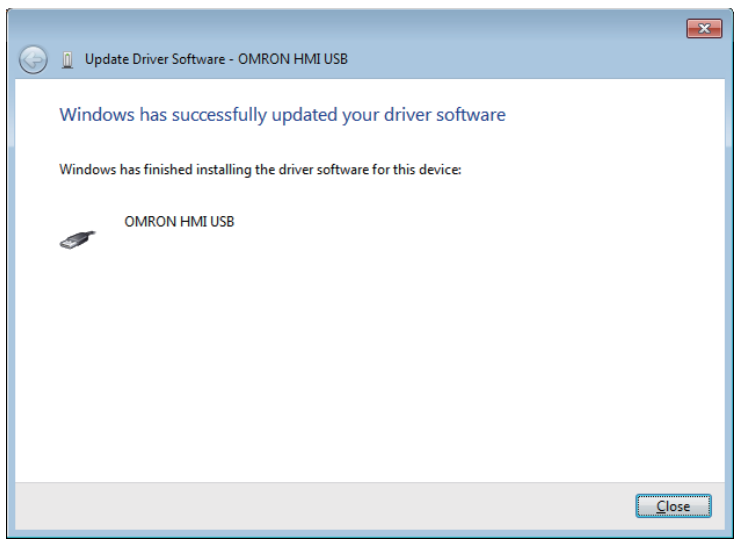
Step 6: After the completion of installation, the following dialog box will appear. Click the [Close] button.
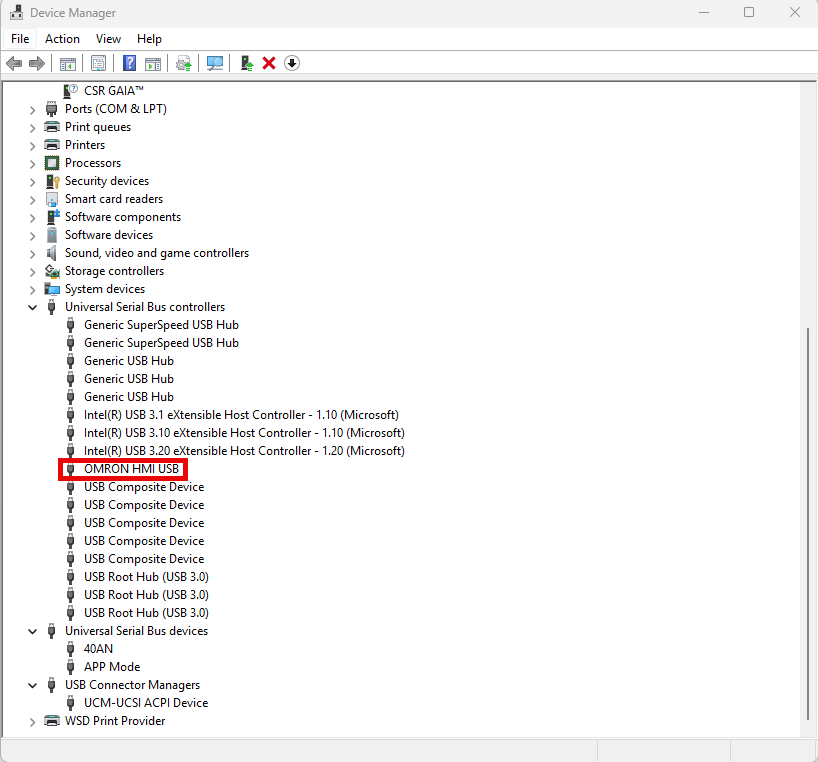
You can check whether the USB driver is installed successfully by going back to Device Manager and find the device under Universal Serial Bus controllers.
Alternatively you can watch this youtube video showing the procedure step by step.
Was this article helpful?
That’s Great!
Thank you for your feedback
Sorry! We couldn't be helpful
Thank you for your feedback
Feedback sent
We appreciate your effort and will try to fix the article