Here is a description on how to convert the system version of projects from Version 8.2 to Version 8.1 with the CX-Designer. This is helpful if you want to use your CX-Designer project in a NS-Runtime environment.
1. Enabling the Conversion Function
- 1-1 Start CX-Designer
- 1-2 Select
About CX-Designer...from theHelpMenu.
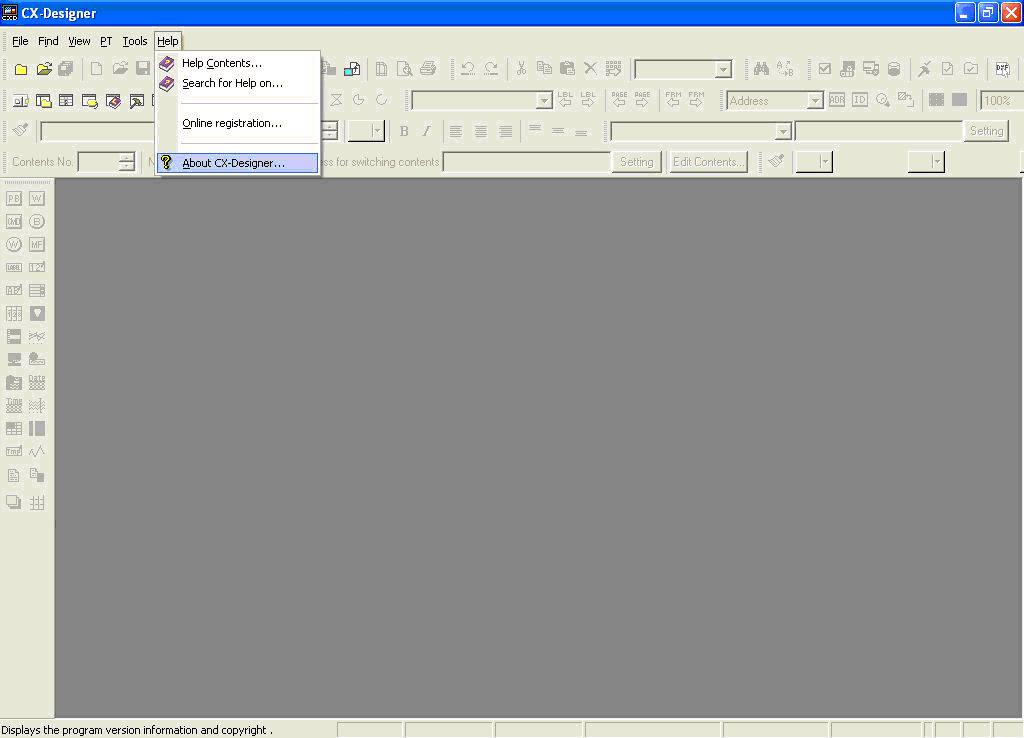
- 1-3 Check the version of your CX-Designer.
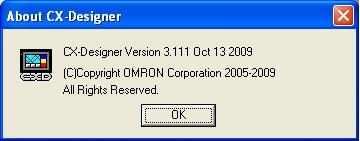
Note: If the version of your CX-Designer is older than the above version, please perform the Auto Update of the CX-Designer.
For the procedures of Auto Update, refer to Chapter 3 of the CX-One Setup Manual in the folder where the CX-One is installed (The default folder is “C:\Program Files\OMRON\CX-One\Online-Manuals”).
- 1-4 Exit from the CX-Designer
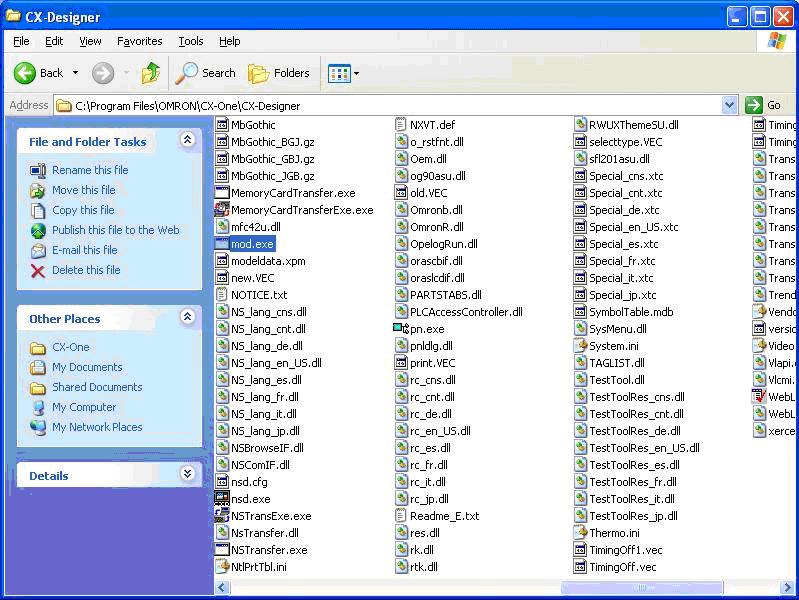
- 1-5 Double-click the file
mod.exefile in the folder where the CX-Designer is installed (The default folder is “C:\Program Files\OMRON\CX-One\CX-Designer”):
- 1-6 At the prompt, click the Yes Button:
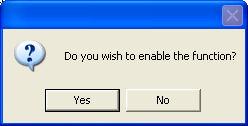
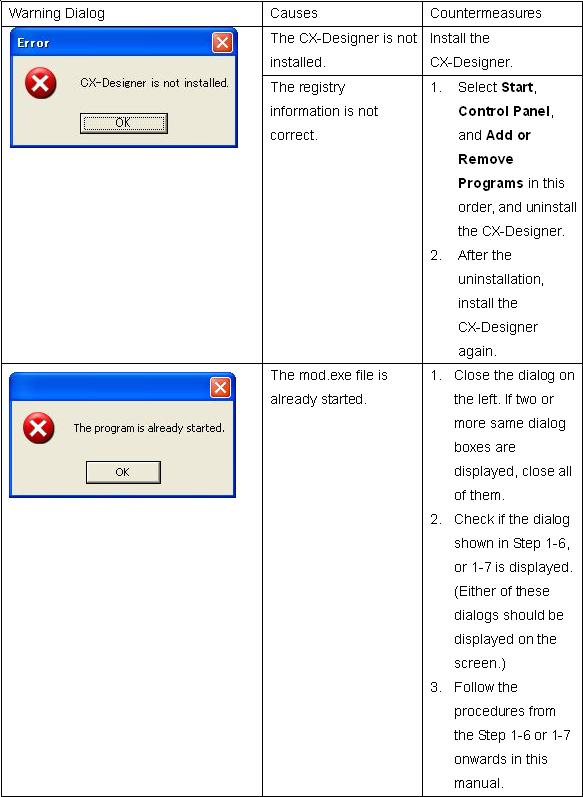
Note: If the above dialog does not appear after you double-click the mod.exe file, please refer to 3. Troubleshooting in the bottom of this document.
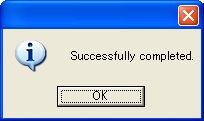
- 1-7 Click the OK Button.
Now, the conversion function is enabled.
2. Executing the Conversion function
- 2-1 Start the CX-Designer, and then open the project that you want to convert
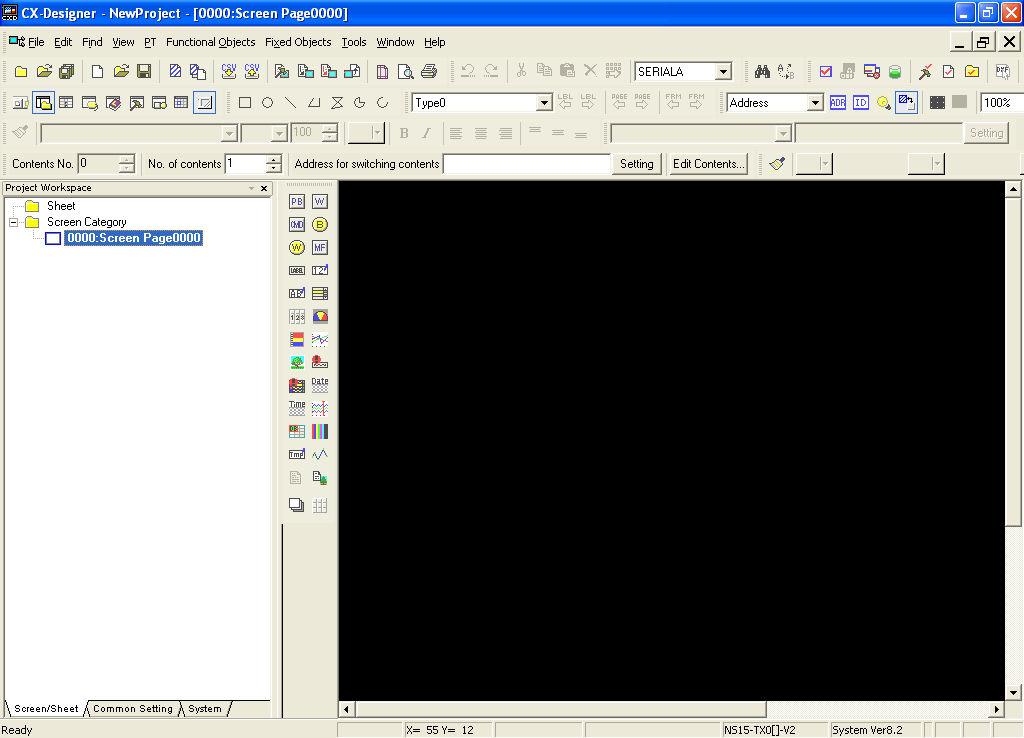
- 2-2 Confirm that the system version of the project is Ver 8.2:
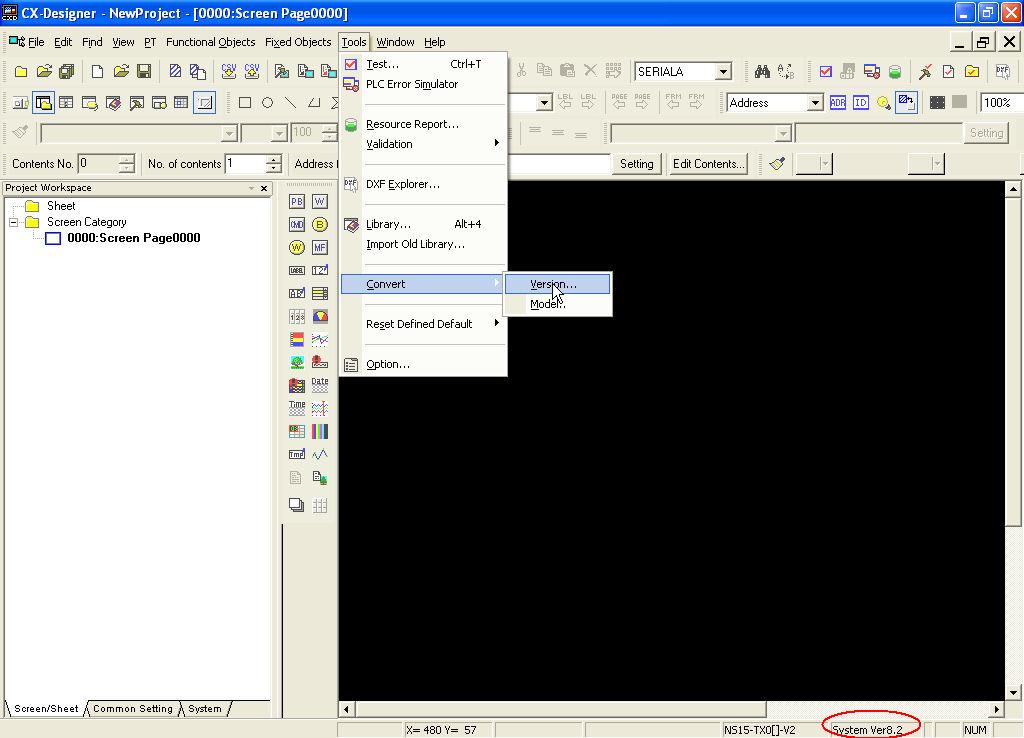
- 2-3 Select Tools, Convert, and Version... in this order:
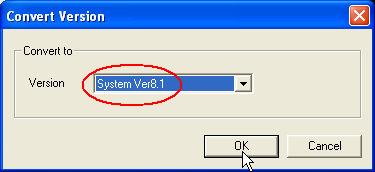
- 2-4 Confirm that “System Ver8.1” is selected in the Version box in the Convert to field, and then click the OK Button:
- 2-5 Click the
Yes to AllButton:
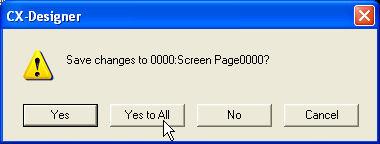
- 2-6 Click the OK Button.
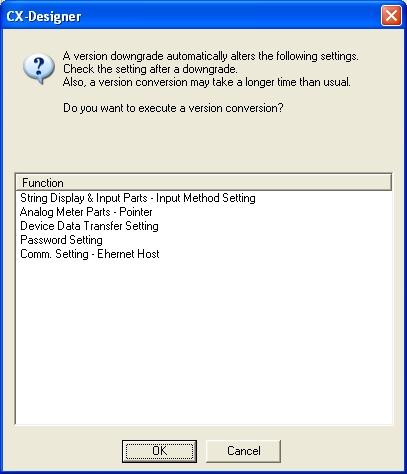
- 2-7 Enter a new file name (which must be different from the name before conversion) in the File name box, and then click the Save Button:
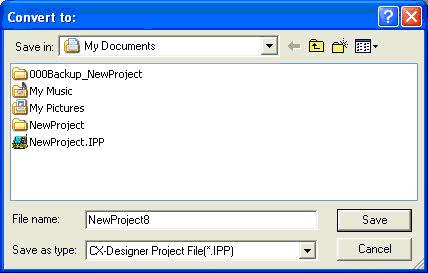
- 2-8 Confirm that the system version of the project is Ver 8.1.
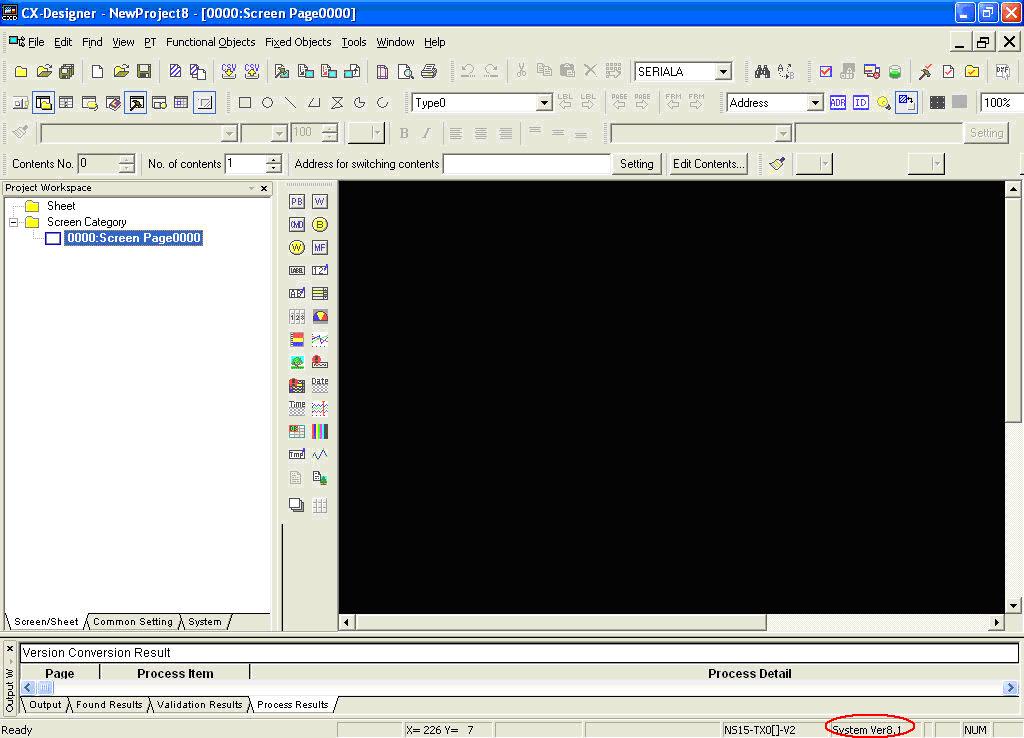
Now, the conversion is successfully completed.
3. Troubleshooting
Was this article helpful?
That’s Great!
Thank you for your feedback
Sorry! We couldn't be helpful
Thank you for your feedback
Feedback sent
We appreciate your effort and will try to fix the article