Introduction
The use of resources in the NA projects is perfect for keeping all strings and translatable items in the same place. See articles on “Understanding NA Resources” and “Translating An NA Project And Checking The Results”.
In addition keeping a resource database allows changes to application strings to be made easily within the same language. For example the name of the product changes during development or a mistake has been made during development.
This article shows how easy it is to update a resource.
Step 1 - Locate the Resource in Your Project
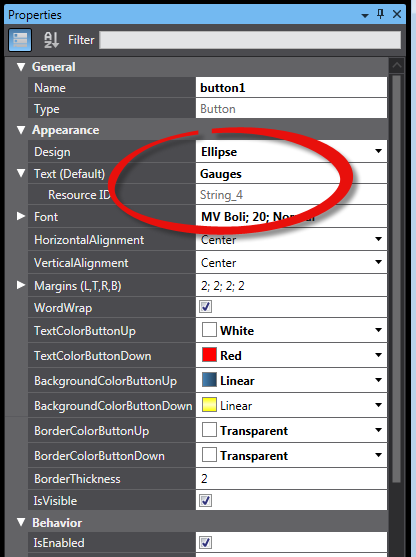
Each object using a text field in your project will have the text shown in the properties. In this example we have a button with the Text set to ‘Gauges’. If you open out the section for the text you will see the resource ID for this text ‘Gauges’ in this Case it is String_4.
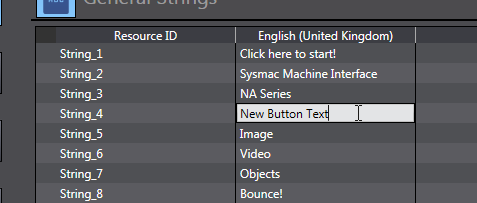
You can now locate the ‘String_4’ resource in the ‘General Strings’ in the project resources.
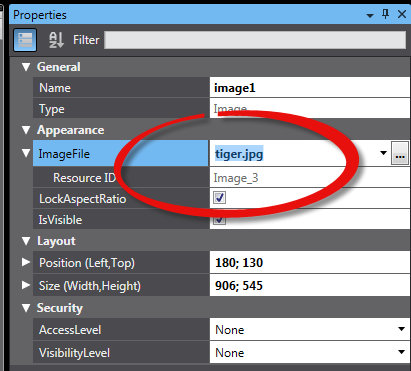
In the same way, you can find the resource ID for images and documents via the properties:
Step 2a – Edit the Resource In The Resources Database
From the resources area, once you have located the correct resource, you can edit the resource by simply clicking in the field and editing it. This will ensure that any other objects using this resource are also updated.
In the same way you can edit other resources such as pictures to add another picture from the disk.
Step 2b – Change the Resource the Object Is Using
Rather than editing the resource, it may be that you wish to display another resource that is already in the resources database.
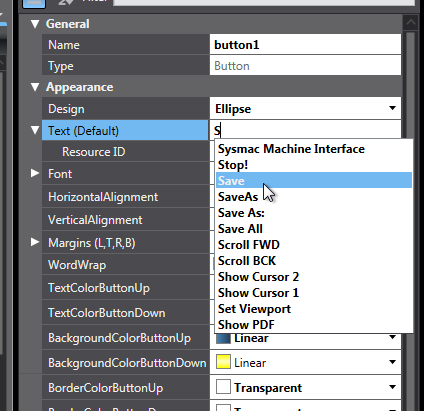
For string resources, simply delete the text and start typing the new text, this will offer suggestions of other resources in the database, if you choose one of these suggestions the text will automatically link to this pre-existing resource and any translations associated with that resource:
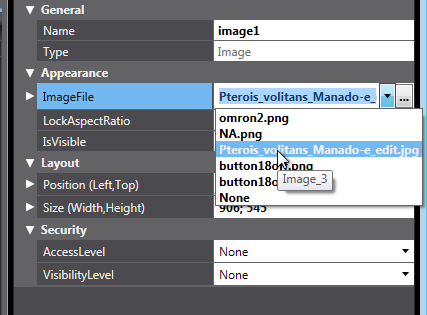
For pictures and other resources, you can select existing resources from a drop down list:
See Also:
Was this article helpful?
That’s Great!
Thank you for your feedback
Sorry! We couldn't be helpful
Thank you for your feedback
Feedback sent
We appreciate your effort and will try to fix the article