Introduction
A) Exporting and importing symbols from a CX-Programmer to a NB-Designer project:
- Exporting symbols from CX-Programmer
- Converting symbols from CX-Programmer .cxr to NB-Designer compatible .csv file
- Importing symbols in NB-Designer
B) Switching host PLC tags in a NB-Designer project:
- Exporting tag database from NB-Designer
- Converting NB-Designer tag database file
- Importing symbols in NB-Designer
C) Notes
A) Exporting and importing symbols from a CX-Programmer to a NB-Designer project:
Exporting symbols from CX-Programmer
Follow exactly this steps in order to export symbols from CX-Programmer project.
1) In CX-Programmer project, create the symbol table you want to export
.jpg)
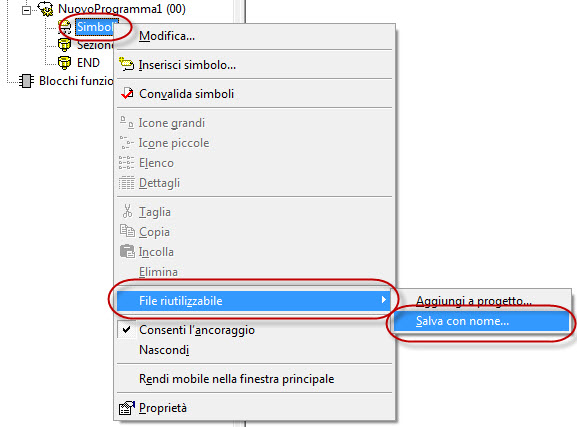
2) Right-click on Symbols, then select Reusable tile --> Save as...
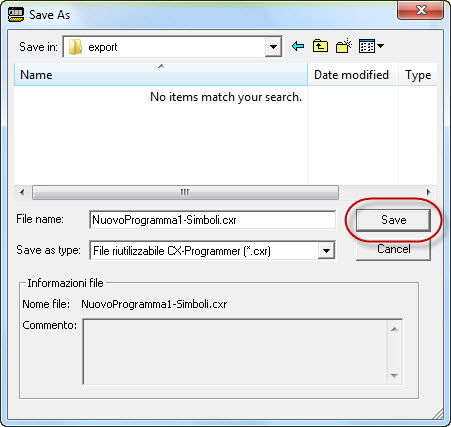
3) Choose name and folder of the .cxr file to export, then press Save:
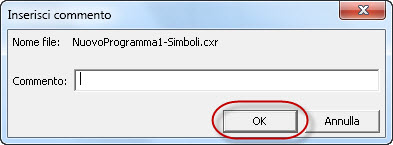
4) Leave the Comment field blank and press OK:
Converting symbols from CX-Programmer .cxr to NB-Designer compatible .csv file
Follow this steps to converto the symbol file:
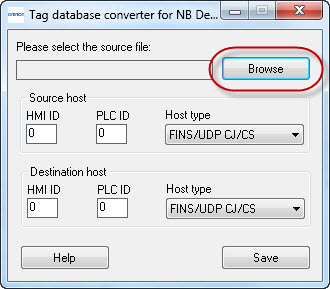
1) Once launched this tool, press Browse to navigate to file folder:
2) Once selected the CX-Programmer .cxr file, press Open:
.jpg)
.jpg)
3) Specify the destination host HMI ID, PLC ID and protocol, then press Save:
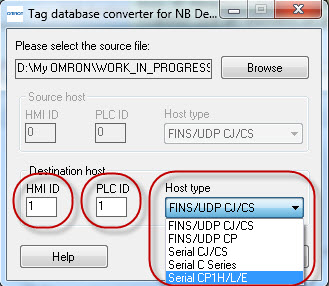
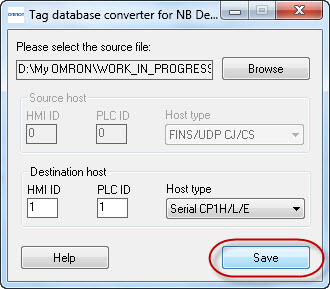
NOTE: HMI and PLC IDs must be read in NB-Designer project:
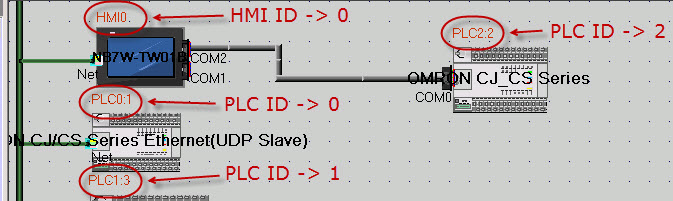
4) Choose name and folder of the NB-Designer .csv symbol table file, then press Save:
.jpg)
Importing symbols in NB-Designer
Follow this steps to import PLC symbols in NB project:
1) In NB-Designer project, click on Project Database --> Address Tag:
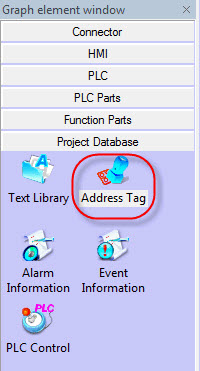
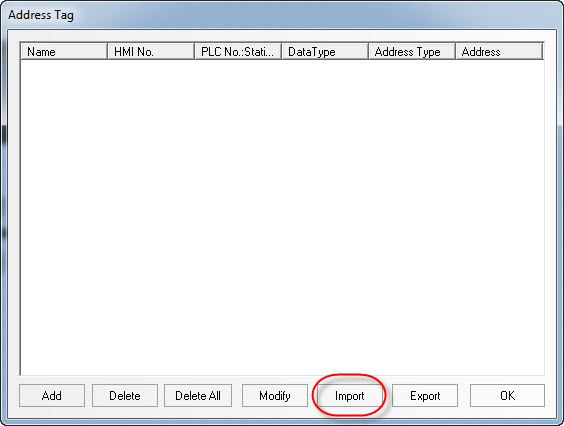
2) In the Address Tag window, click Import:
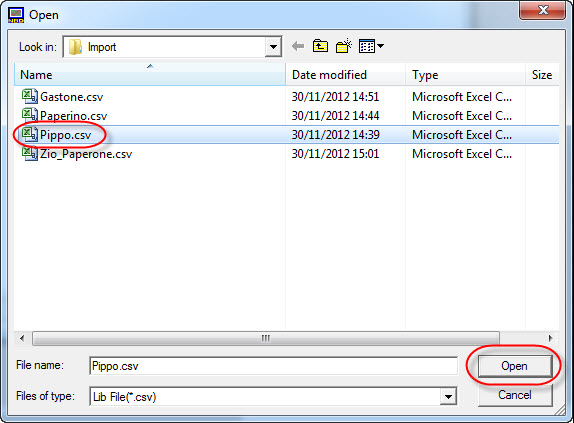
3) Select the .csv file containing the symbols, then click Open:
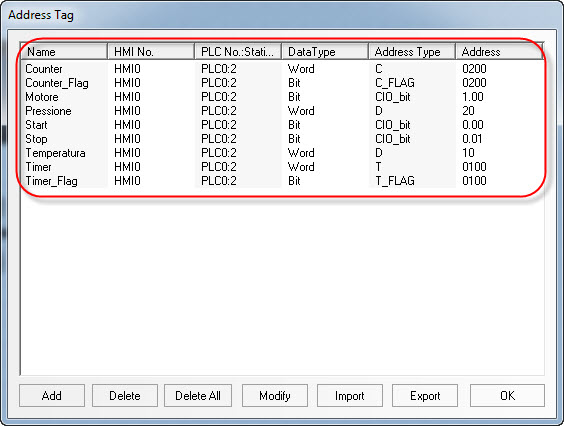
4) Then symbols will be imported in the NB-Designer project.
B) Switching host PLC tags in a NB-Designer project:
Convert symbols to switch host properties in a NB-Designer tag database .csv file
Follow this steps to converto the symbol file:
1) Once launched this tool, press Browse to navigate to file folder:
2) Once selected the NB-Designer tag database .csv file, press Open:
.jpg)
3) Specify the source host HMI ID, PLC ID and protocol:
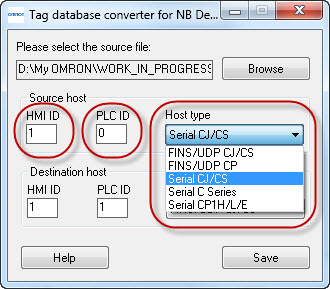
4) Specify the destination host HMI ID, PLC ID and protocol, then press Save:
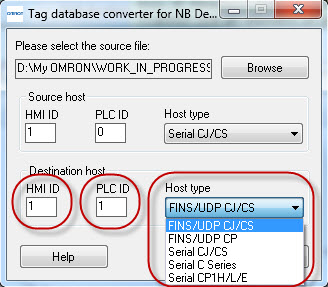
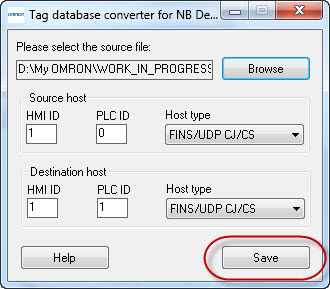
NOTE: HMI and PLC IDs must be read in NB-Designer project:
5) Choose name and folder of the NB-Designer .csv symbol table file, then press Save:
Importing symbols in NB-Designer
Follow this steps to import PLC symbols in NB project:
1) In NB-Designer project, click on Project Database --> Address Tag:
2) In the Address Tag window, click Import:
3) Select the .csv file containing the symbols, then click Open:
4) Then symbols will be imported in the NB-Designer project.
C) Notes
- The latest version does not support importing characters with accents such as ú, ñ or ï in the commentary or tag name field.
Was this article helpful?
That’s Great!
Thank you for your feedback
Sorry! We couldn't be helpful
Thank you for your feedback
Feedback sent
We appreciate your effort and will try to fix the article